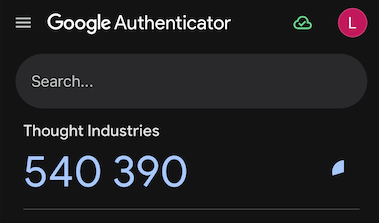
Multi-Factor Authentication (MFA or Two-Factor Authentication) helps keep your account secure by requiring a secondary verification code each time you log in. This code is sent to the authenticator app on your mobile device (we recommend using Google Authenticator, available for free in your mobile app store).
If you are having trouble logging in with MFA, please follow these steps:
Go to the VetFolio Homepage and click Sign In in the top right corner.
Enter your email address and password, then click the Sign In button.
Open your mobile authenticator app, retrieve your current verification code, and enter it into the prompt.
IMPORTANT: Verification codes expire very quickly. Keep an eye on the partial circle beside the code in your app; once the circle fully disappears, the code is no longer valid, and you will need to use the newly generated one.
If you have not yet downloaded and set up an authenticator tool, you can find helpful information about how to do that here.
If you still experience issues or use an authenticator tool other than Google Authenticator, specific directions may vary. Please reach out to our team at support@vetfolio.com or chat us using the blue chat bubble in the lower right-hand corner of the screen for additional assistance!
1. Click the Sign In option in the top right corner of the VetFolio homepage.
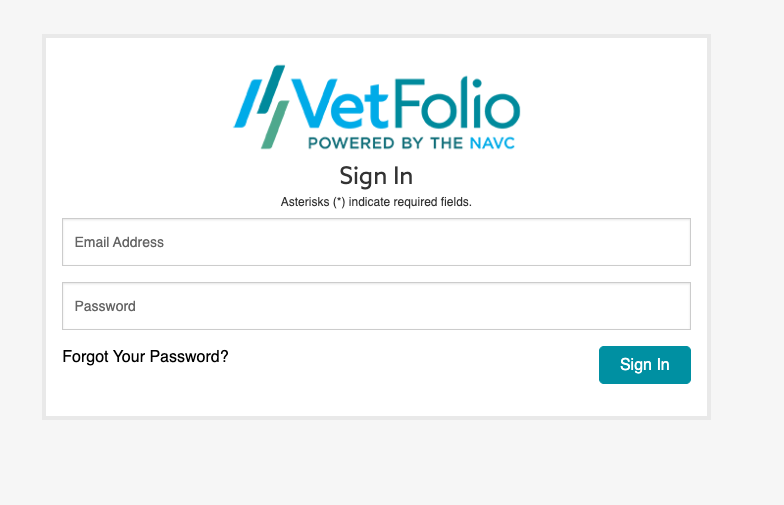
2. Enter your email and password and click the Sign In button.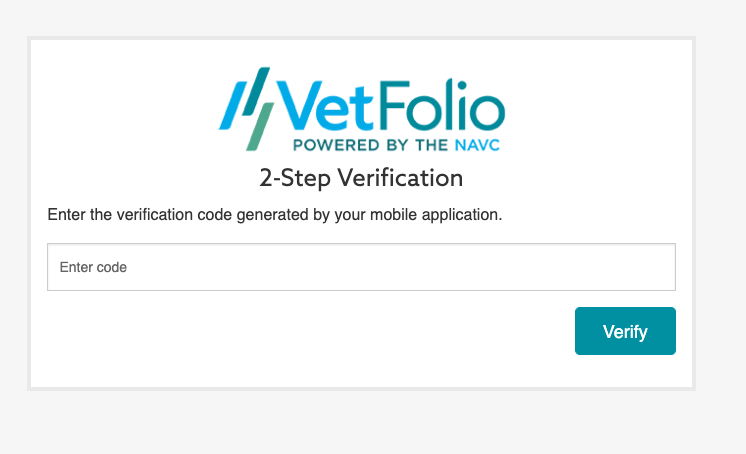
3. In your authenticator app on your mobile device, find the verification code, then hit the Verify button.
IMPORTANT: Verification codes expire very quickly. You will see in the example below a partial circle beside the code, and once the circle fully disappears, the code is no longer valid.